
WhatsApp Business. Tu equipo ya está en
WhatsApp Business.
This guide shows you how to receive, manage, and respond to WhatsApp messages directly from your NextPointe portal and Webex, with no extra apps needed.
Esta guía te muestra cómo recibir, gestionar y responder mensajes de WhatsApp directamente desde el portal de NextPointe y Webex, sin apps adicionales.
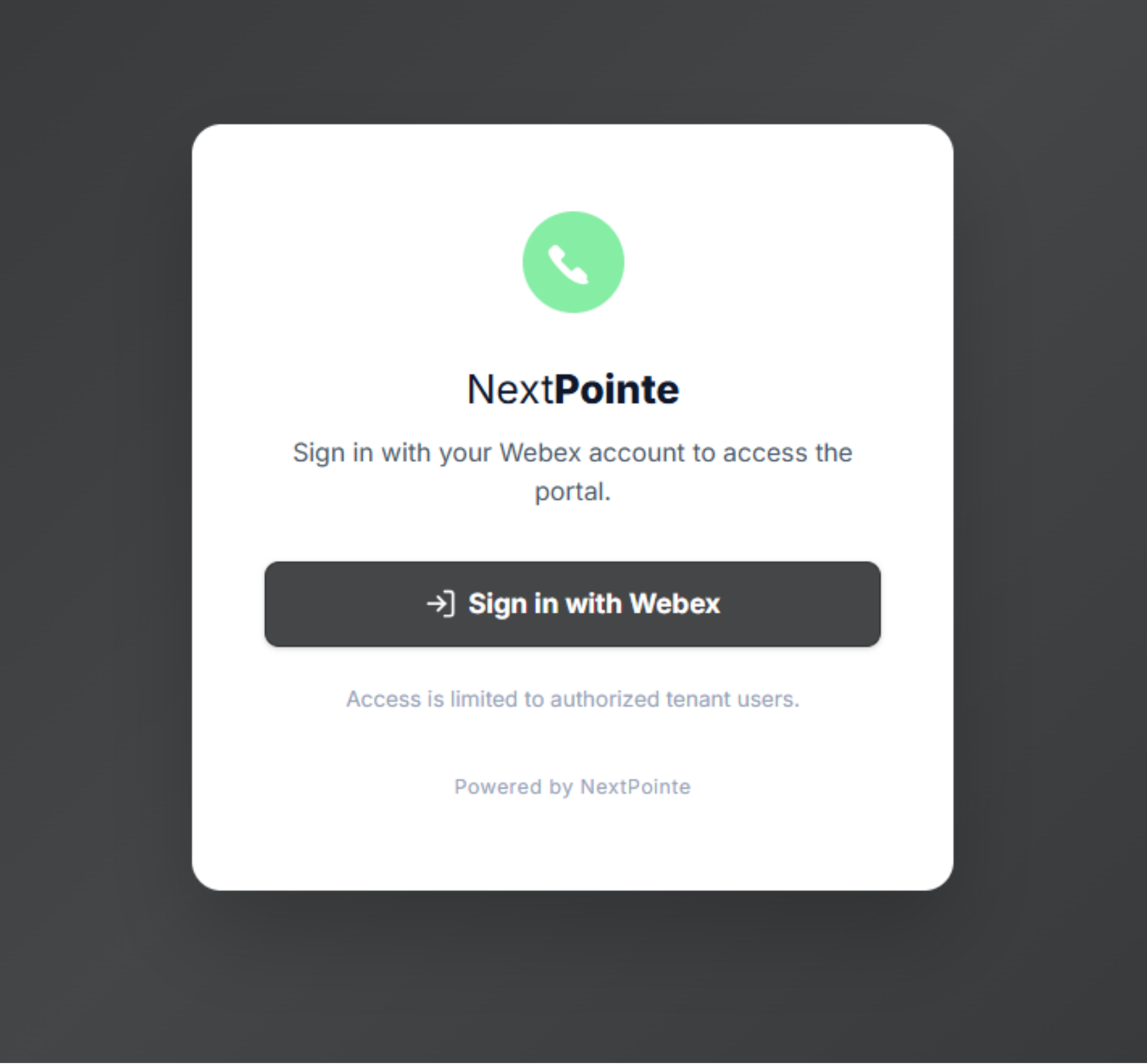
All incoming WhatsApp and SMS messages are managed from a single place: the NextPointe Portal. Sign in with your existing Webex credentials.
Todos los mensajes de WhatsApp y SMS se gestionan desde un solo lugar: el Portal de NextPointe. Inicia sesión con tus credenciales de Webex.
Go to the NextPointe portal in any browser.
Ingresa al portal de NextPointe desde cualquier navegador.
portal.nextpointe.comUse the same email and password you use for Webex Calling. No separate login required.
Usa el mismo correo y contraseña que usas para Webex Calling. No necesitas un login separado.
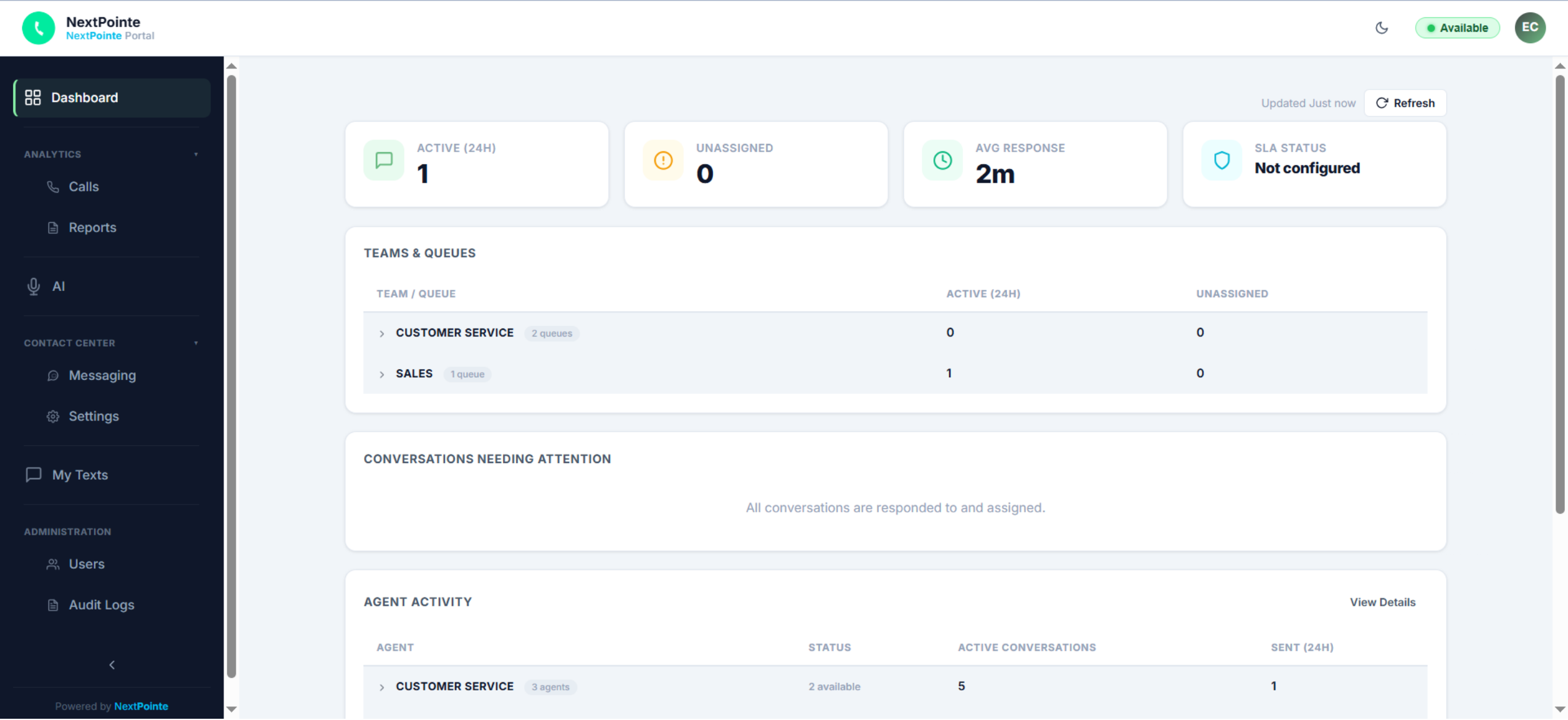
In the left sidebar, find Contact Center and click Messaging. This opens the Messaging Hub, where all your WhatsApp and SMS queues live.
En la barra izquierda, busca Contact Center y haz clic en Messaging. Esto abre el Messaging Hub, donde están todas tus colas de WhatsApp y SMS.
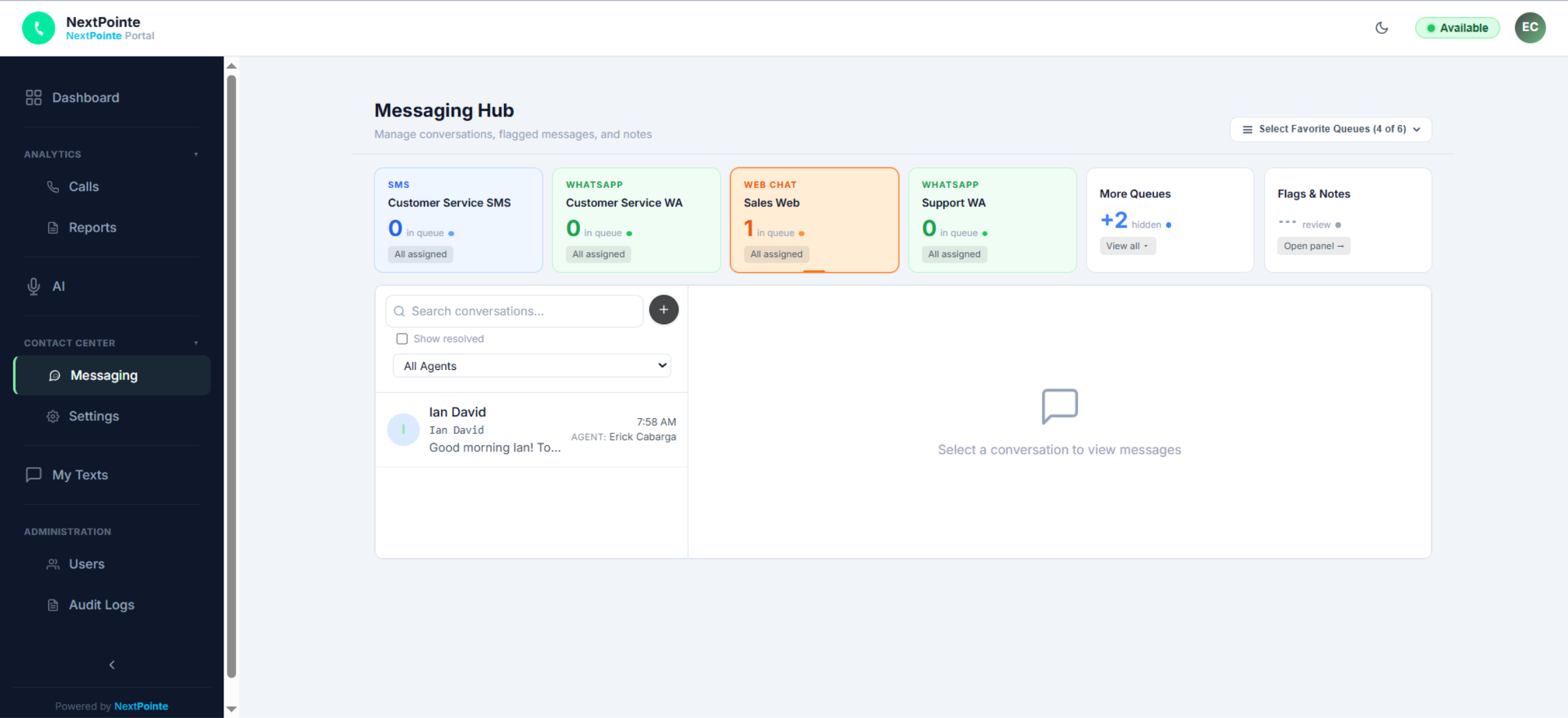
At the top of the Messaging Hub, there are cards for each queue, including your WhatsApp Business number. Any message that comes in shows up here in real time.
En la parte superior del Messaging Hub hay tarjetas por cada cola, incluyendo tu número de WhatsApp Business. Cualquier mensaje que llegue aparece aquí en tiempo real.
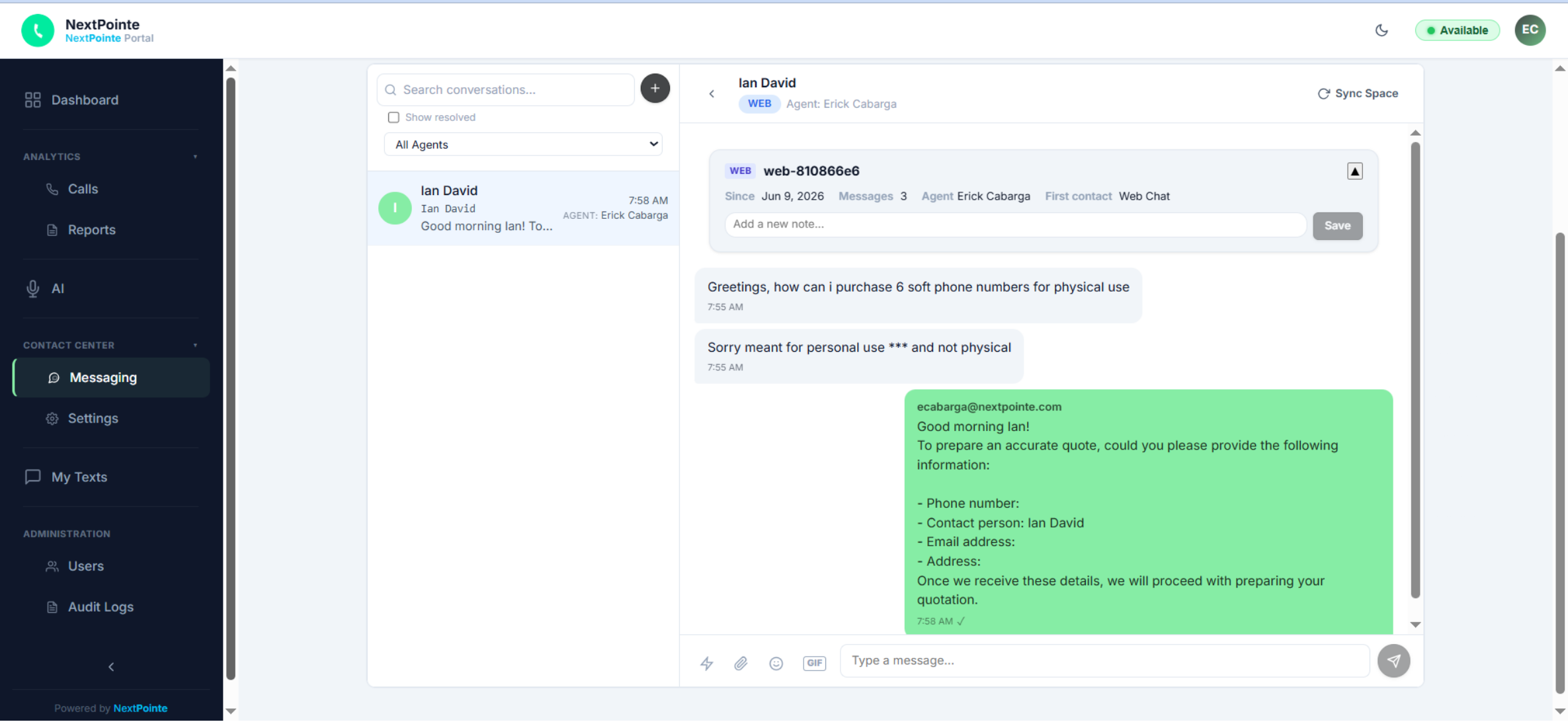
When someone sends a WhatsApp message to your business number, two things happen simultaneously.
Cuando alguien envía un mensaje de WhatsApp a tu número de empresa, dos cosas ocurren al mismo tiempo.
The conversation appears in the queue under Contact Center → Messaging. Any agent logged in can see and claim it.
La conversación aparece en la cola bajo Contact Center → Messaging. Cualquier agente conectado puede verla y reclamarla.
A conversation card is sent to the Webex space for your WhatsApp queue. Everyone on the team sees it and anyone can claim it.
Se envía una tarjeta al espacio de Webex de tu cola de WhatsApp. Todo el equipo la ve y cualquiera puede reclamarla.
Open the conversation card in Webex. It shows the channel, the customer identifier, and the assigned agent. Click Assign to me to take ownership and respond from the portal.
Abre la tarjeta en Webex. Muestra el canal, el identificador del cliente y el agente asignado. Haz clic en Asignarme para hacerte cargo y responder desde el portal.
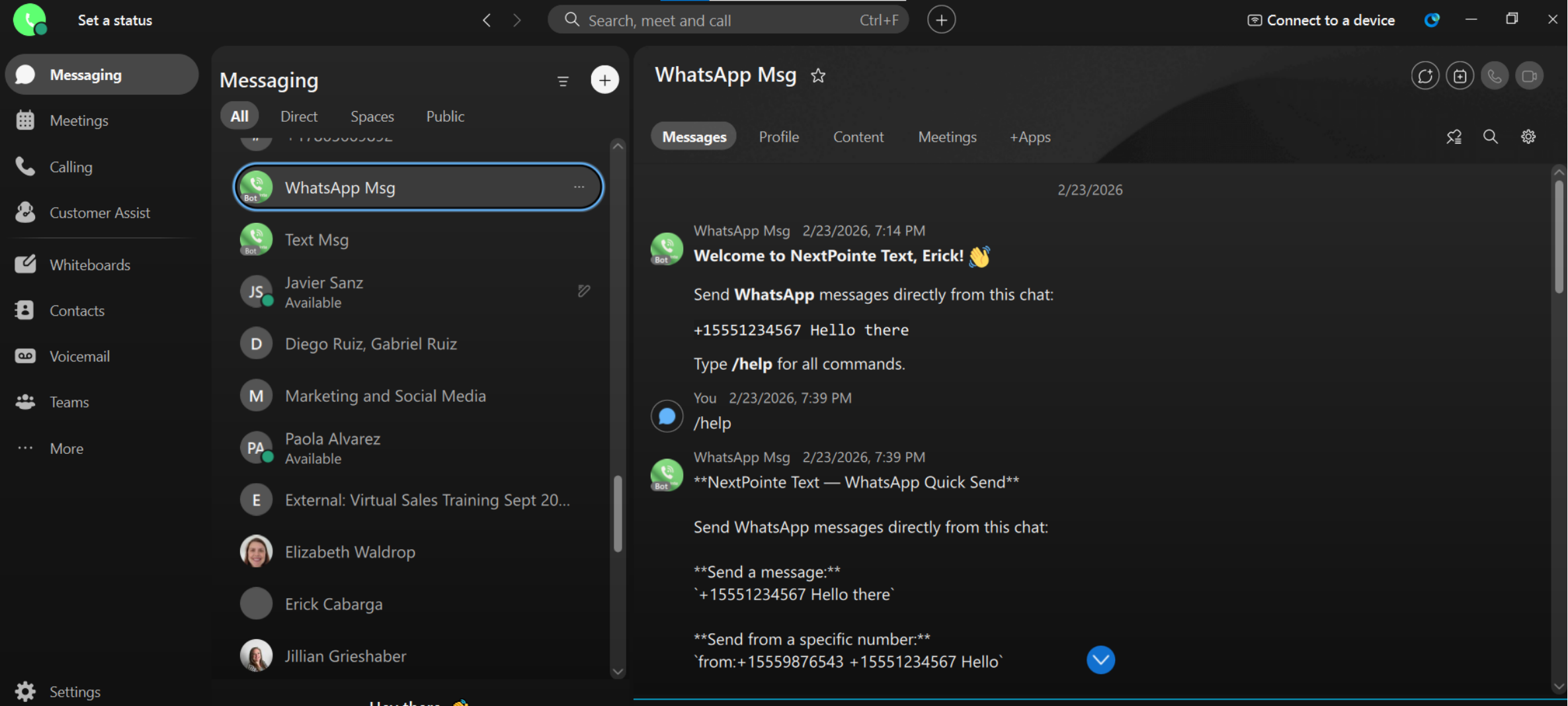
Each conversation gives you a set of actions, available from both the portal and Webex.
Cada conversación ofrece un conjunto de acciones, disponibles desde el portal y desde Webex.
Internal note visible only to your team, never sent to the customer. Useful for context or handoff instructions.
Nota interna visible solo para tu equipo, no se envía al cliente. Útil para contexto o instrucciones de traspaso.
Mark the conversation as resolved when the issue is handled. Moves it out of the active queue.
Marca la conversación como resuelta cuando el caso está atendido. Sale de la cola activa.
Request an AI-generated summary of the full conversation; great for long threads or quick handoffs.
Solicita un resumen generado por IA; ideal para hilos largos o traspasos rápidos.
Transfer the conversation to another agent if someone else is better suited to handle it.
Transfiere la conversación a otro agente si alguien está mejor preparado para atenderla.
Mark yourself unavailable so new conversations are not routed to you while you’re away or on a call.
Márcate como no disponible para que no te asignen conversaciones nuevas mientras estás ausente.
WhatsApp has specific rules about who can start a conversation and when. Understanding these keeps your account in good standing.
WhatsApp tiene reglas específicas sobre quién puede iniciar una conversación y cuándo. Entenderlas mantiene tu cuenta en buen estado.
If your team wants to reach out first to a customer who hasn’t messaged you yet, you must use a pre-approved Message Template reviewed by Meta. Each template message has a small fee charged by Meta as an anti-spam measure. Templates are ideal for appointment reminders, follow-ups, or proactive outreach.
Si tu equipo quiere escribirle primero a un cliente que aún no te ha contactado, debes usar un Template de mensaje aprobado por Meta. Cada template tiene un pequeño costo cobrado por Meta como medida anti-spam. Son ideales para recordatorios, seguimientos o contacto proactivo.
Once a customer sends you a message, a 24-hour window opens. During this window your team can reply freely, with no templates needed. The window resets every time the customer sends a new message. If it closes, any outbound message requires a template again.
Una vez que el cliente te envía un mensaje, se abre una ventana de 24 horas. Durante ese tiempo tu equipo puede responder libremente, sin templates. La ventana se reinicia cada vez que el cliente escribe. Si cierra, cualquier mensaje saliente requiere un template.
When a customer messages you first, there are no restrictions on your replies. Send text, images, files, voice notes, and more, freely within the 24-hour window.
Cuando el cliente te escribe primero, no hay restricciones en tus respuestas. Envía texto, imágenes, archivos, notas de voz y más, libremente dentro de la ventana de 24 horas.
WhatsApp’s policy protects users from spam. Businesses that send unsolicited messages risk having their number flagged or disabled. Respond promptly when a customer messages you; that is the best way to keep conversations going without needing templates.
La política de WhatsApp protege a los usuarios del spam. Las empresas que envían mensajes no solicitados corren el riesgo de tener su número bloqueado. Responde rápido cuando el cliente te escribe; esa es la mejor forma de mantener conversaciones activas sin templates.
Reply to every inbound message within the 24-hour window. For customers you haven’t heard from in a while, use a template. Your NextPointe team can help you set up approved templates for your most common use cases.
Responde a cada mensaje entrante dentro de las 24 horas. Para clientes de los que no has sabido en un tiempo, usa un template. Tu equipo de NextPointe puede ayudarte a configurar templates aprobados para tus casos más comunes.
- 🔗 Login → portal.nextpointe.com
- 📍 Navigate → Contact Center → Messaging
- 📥 Incoming WA → visible in queue + Webex card
- 👋 Claim → click Assign to me in Webex
- ✅ Done? → Resolve the conversation
- 🤖 Long thread? → Request AI Summary
- 📋 Messaging a customer first? → Use a template
- ⏱️ Window → 24h from customer’s last message
- 🔗 Login → portal.nextpointe.com
- 📍 Ir a → Contact Center → Messaging
- 📥 WA entrante → aparece en cola + tarjeta Webex
- 👋 Reclamar → clic en Asignarme en Webex
- ✅ ¿Listo? → Resolver la conversación
- 🤖 ¿Hilo largo? → Pedir resumen de IA
- 📋 ¿Escribir primero? → Usa un template
- ⏱️ Ventana → 24h desde el último mensaje del cliente