
Microsoft Teams Phone vs Webex Calling: The Ultimate Guide for SMBs to Choose the Right Solution
August 25, 2025
Webex vs Teams: The Ultimate Showdown for Hybrid Legal Staff Collaboration
August 29, 2025
Webex Calling is reliable by design; this guide shows how to keep PSTN noise out of every call. Many organizations rely on PSTN (Public Switched Telephone Network) for their communication needs, which can sometimes introduce unwanted external caller noise during meetings. This noise can disrupt the flow of conversation and hinder productivity. If you’re using Webex for your conferences and meetings, you’re in luck! This article provides a comprehensive step-by-step guide on how to eliminate external caller noise on PSTN in Webex, ensuring your meetings are as clear and productive as possible. We’ll also cover best practices for maintaining crystal-clear PSTN calls, enabling you to harness the full potential of your Webex experience. Let’s get started!

Key Takeaways
- PSTN external caller noise can disrupt communication during Webex meetings.
- Implementing specific steps can significantly reduce or eliminate noise from callers.
- Utilizing audio settings and hardware adjustments can enhance call clarity in Webex.
- Regular maintenance and monitoring can help sustain high-quality PSTN call experiences.
- Staying informed about best practices ensures ongoing effectiveness in managing caller noise.
Understanding PSTN External Caller Noise
In today’s fast-paced communication landscape, ensuring clear audio quality during calls is paramount, especially for professionals relying on platforms like Webex. One of the challenges that many users encounter is PSTN external caller noise, which can disrupt important conversations. Understanding PSTN external caller noise removal in Webex is vital to maintaining a seamless experience. This type of noise often comes from various sources, such as a caller’s environment or telecommunication interference, making it crucial to leverage Webex’s built-in noise suppression features. By utilizing the advanced audio settings in Webex, users can effectively reduce background interruptions, allowing for clearer dialogue and a more professional calling experience. In this article, we’ll explore the causes of PSTN external caller noise and provide practical tips on how to optimize your Webex settings for improved audio clarity.
Steps to Reduce PSTN Caller Noise in Webex Calling
To keep conversations clear in Webex Calling, start by enabling Webex Smart Audio on your app: use Noise removal or Optimize for my voice to suppress background sounds from your own side. During any call with a noisy external (PSTN) participant, open the Smart Audio menu and select Optimize for external party’s voice (HD Voice) to enhance and clean the audio you hear from them. Combine this with basic etiquette—ask callers to mute when not speaking and prefer a quiet space or a wired headset—and you’ll significantly cut down distractions without extra services or add-ons.
Step-by-Step for Agents (Webex Calling)
- Update Webex App
Make sure you’re on a current version of the Webex App so Smart Audio options are available. Webex Help Center - Set your default Smart Audio (your mic)
Go to Settings → Audio → Webex smart audio and choose:
- Noise removal – removes background noise.
- Optimize for my voice – removes background noise and background speech around you (best for shared spaces). Webex Help Center+1
- Clean what you hear from PSTN callers
In the same Audio settings, under External audio, select Optimize for external party’s voice (HD Voice) (default). This converts low-fidelity external audio to HD and suppresses background noise from the other side. Webex Help Center+1 - During a noisy call
Click the Smart Audio indicator in the in-call header and confirm Optimize for external party’s voice is active (or switch from Original if needed). Webex Help Center - Device best practices
Pick the correct mic/headset in Settings → Audio and avoid OS mic effects that can conflict (on macOS Sonoma, use Standard Mic Mode). Webex Help Center - Desk phones (if used)
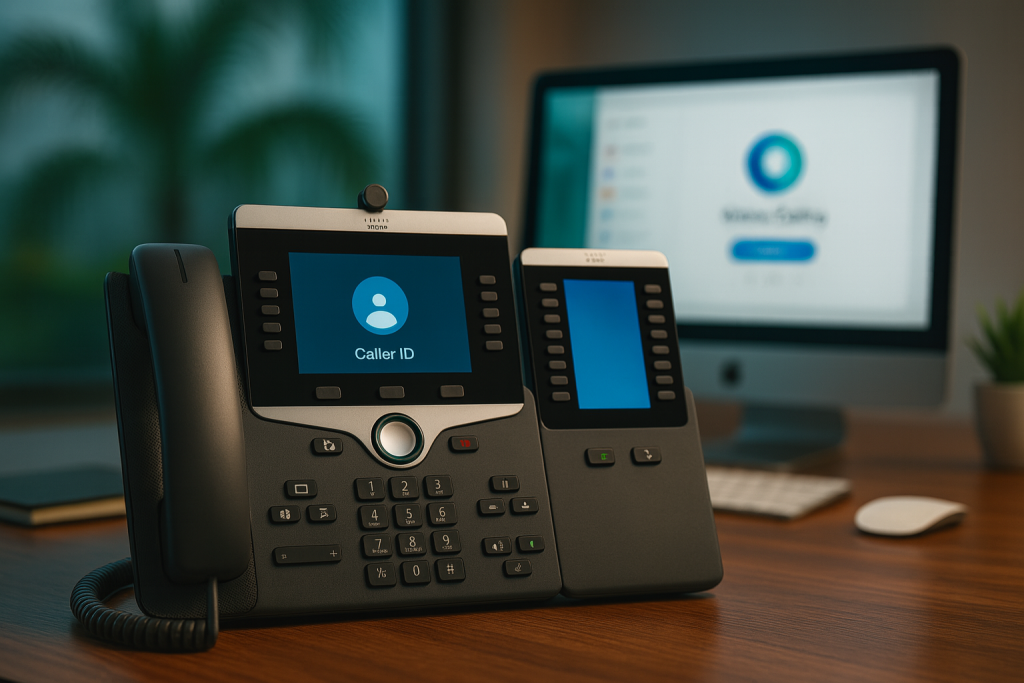
On supported Cisco Desk/Video phones (e.g., 9800/8875), enable the built-in noise removal to clean your transmitted audio. Webex Help Center - If noise persists
Verify External audio isn’t set to Original. If problems continue, capture the time of call and ask an admin to review it in Control Hub → Troubleshooting for Webex Calling call media stats. Webex Help Center
Quick Admin Checklist
- Ensure app currency across endpoints so users have Smart Audio (and HD Voice for external callers). Cisco Investor RelationsCisco
- Publish a one-pager with the standard:
- Webex smart audio (local mic): Optimize for my voice (or Noise removal).
- External audio: Optimize for external party’s voice (HD Voice). Webex Help Center+1
- Train agents to check the in-call Smart Audio toggle when a PSTN caller is noisy. Webex Help Center
- For desk phones, keep firmware current and enable noise removal where supported. Webex Help Center
- Use Control Hub → Troubleshooting to investigate user-reported noisy calls (packet loss, codec, levels).
‘The only thing worse than a noisy phone call is a call with no clarity at all; silence cannot be heard, but noise can drown the message you need to convey.’ – Anonymous
Best Practices for Maintaining Clear PSTN Calls
In today’s digital communication landscape, ensuring clear and uninterrupted calls is paramount, especially for businesses that rely on PSTN (Public Switched Telephone Network) for connectivity. One common issue faced by users is external caller noise, which can be disruptive during important meetings. To address this, implementing PSTN external caller noise removal features in Webex can significantly enhance the quality of your audio experience. First, ensure that your Webex settings are optimized for noise suppression; enabling features that reduce background sounds can make a substantial difference. Additionally, encourage external callers to use high-quality headsets or microphones, as this can mitigate external noise before it even enters the call. Another effective strategy is to use a quiet room for calls, as this will help in minimizing any intruding sounds. Lastly, regularly updating your Webex application to the latest version ensures access to cutting-edge features designed for noise cancellation and overall call quality improvement. By following these best practices, you can greatly reduce the impact of external caller noise, ensuring that your PSTN calls are as clear and productive as possible.
As a Cisco Webex provider based in Florida, NextPointe helps teams lock in consistently clear PSTN audio on Webex Calling. We review your environment, recommend Smart Audio defaults (Noise removal, Optimize for external party’s voice), align headset/device profiles, and train users so calls start clean by default. Our fully assisted onboarding and ongoing support turn best practices into standard practice—without adding complexity. Interested in a quick readiness check or a live walkthrough? Contact NextPointe and we’ll set it