Stop Scam Calls Before They Reach Your Team
May 16, 2026
Is It Actually Legal to Record Your Business Calls? The ultimate Guide (2026)
August 3, 2026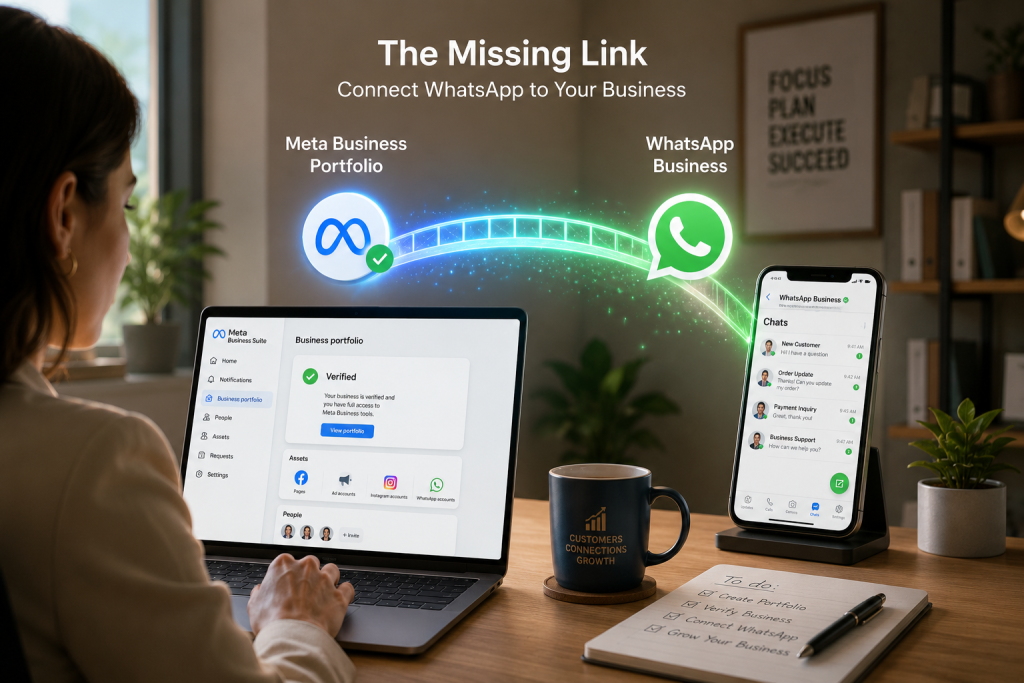
If you’ve ever tried to connect WhatsApp to your business the “official” way, you already know the feeling. You open a help article, it mentions something called a Business Portfolio, then it links to another article, which links to a third, and forty minutes later you’re staring at a Meta support page wondering if you accidentally signed up to run ads instead of just answering customer messages.
You’re not imagining it. Meta buried the actual starting line under a pile of settings that have nothing to do with WhatsApp at first glance. But here’s the part nobody tells you upfront: none of the good stuff a shared team inbox, automated replies, a verified green checkmark, a real integration with your CRM is possible until this one piece is set up correctly. Get it right the first time, and everything downstream (the number, the API, the badge) falls into place in a fraction of the time.
So let’s actually walk through it, in order, the way it should have been explained the first time.
First, what is a Business Portfolio, and why does WhatsApp care?
A Meta Business Portfolio (you’ll still see it called “Business Manager” in older articles and some menus — Meta renamed it, but didn’t finish renaming everything) is the account that owns your business’s presence across Meta’s platforms. Think of it less like a social media profile and more like a corporate umbrella: it holds your Facebook Page, your Instagram account, your ad accounts, and the reason you’re here: your WhatsApp Business Account.
WhatsApp’s API isn’t something you can just sign up for with an email address the way you would for the free WhatsApp Business app on your phone. It’s a business-grade product, and Meta wants to know there’s an actual, verifiable company behind the number before handing over API access. That verification lives at the Portfolio level, not the WhatsApp level. Skip it, and you’ll hit a wall the moment you try to register a number for API use.
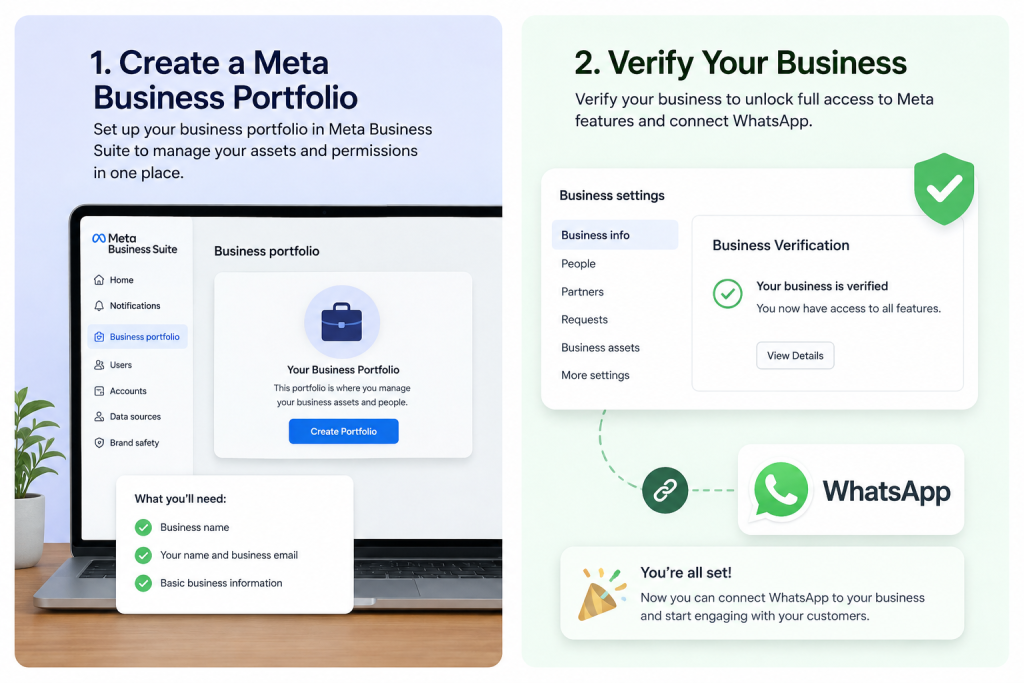
Step 1: Create the Portfolio
Head to business.facebook.com and look for the option to create a business portfolio (sometimes surfaced as “Create an account” if you’ve never touched Meta’s business tools before). You’ll be asked for:
- Your business name: use the exact legal name, not a nickname or a shortened version. This matters more than it sounds like it should; mismatches here are the single biggest reason verification gets rejected later.
- Your name and work email.
- Basic business details: address, phone number, website.
Resist the urge to rush this part. Whatever you type here is what Meta will later try to match against your official business documents. A restaurant that types “Joe’s” instead of “Joe’s Cuban Café LLC” is setting up a headache for itself two weeks from now.
Step 2: Fill out your business details completely
Once the portfolio exists, go into the business settings and complete every field it asks for legal name, address, tax ID if requested, and especially the website. An incomplete profile doesn’t just look unfinished; it’s one of the quiet reasons verification requests sit in review longer than they need to.
If your business operates under a DBA (“doing business as”) name that’s different from your legal entity, use the legal name here. You can usually add the DBA as a secondary detail, but the legal name is what your verification documents need to match.
Step 3: Submit for business verification
This is the step everyone dreads, and honestly, it’s the one that deserves the most patience. Meta will ask for documentation proving your business is real and registered; this typically means one of the following:
- A business license or registration document
- A tax filing or utility bill in the business’s name
- Articles of incorporation
Upload a clean, legible copy, and make sure the business name on the document matches, character for character, what you entered in Step 1. Reviews commonly take anywhere from a few days to a couple of weeks. If it’s rejected, Meta will usually tell you why; most of the time it’s a name mismatch, a blurry document, or a business category that needs a different kind of proof.
A small tip that saves people real time: if you have multiple documents that could work, submit the one where the business name is spelled out most completely and clearly, even if it’s not the first one you’d reach for.
Step 4: Add your team, correctly
While verification is processing, set up who has access. Assign yourself as admin, and if you have a marketing agency, IT partner, or a provider like NextPointe helping you get WhatsApp running, this is where you’d add them with the right permission level rather than sharing your login. It’s a small habit, but it’s the difference between a clean audit trail and a mess to untangle later when someone leaves the company.
Step 5: Connect your WhatsApp Business Account
Once your portfolio is verified, you can finally add a WhatsApp Business Account (WABA) to it. This is a separate object from the portfolio itself; think of the portfolio as the building and the WABA as the specific office inside it where WhatsApp conversations actually happen. You’ll register the phone number you want customers to message here, which is also the moment you decide: is this a brand new number, or are you moving an existing one over? (That second scenario has its own set of landmines; worth its own guide, and we’ve got one coming.)
What happens after verification
With a verified portfolio and a connected WABA, you’re now eligible for things that were locked before: requesting your display name review, applying for the verified badge, and, most importantly for actually running a business on this connecting the number to a real inbox instead of a single phone that only one person can check.
This is usually where the excitement fades a little, because technically, you’re “done” with the paperwork, but you still don’t have a way for your team to actually answer messages together, tag conversations, or see them show up next to a customer’s record in your CRM. That’s a different project, and it’s the one that actually changes how your business runs day to day.
The most common ways this goes sideways
A few patterns show up constantly:
Name mismatches. The Portfolio name, the document name, and the WABA display name all need to tell the same story. Even small punctuation differences can trigger a second review.
Rushing the document upload. A phone photo with a glare across the text gets rejected more often than people expect. A flat scan or a clean PDF saves a review cycle.
Duplicate portfolios. If someone on your team already created a portfolio for the business months ago (maybe to run a Facebook ad), Meta may flag the new one as a duplicate. Worth checking before you start from scratch.
Treating this as a one-person job. Verification, WABA setup, and the actual customer-facing integration are three different skill sets. Plenty of businesses get the portfolio verified just fine and then stall for weeks trying to figure out the rest alone.
Where this actually leads
Here’s the honest part: the verification itself, the documents, the review, the back-and-forth with Meta, is between you and Meta. That’s not a step anyone else can do for you, and we won’t pretend otherwise.
Where it gets interesting is what happens right after. A verified WhatsApp Business number, on its own, is still just a number. The real question is what it turns into once your team actually has to use it every day and, whether you keep control of it as more than one person starts answering messages.
That’s the part NextPointe handles. Once your number is verified, we guide you through connecting it into your systems specifically, into Cisco Webex Calling , so WhatsApp stops being a phone passed around the office and starts working like a real contact center channel. Conversations get assigned to your Webex users the same way a call gets routed to an agent: with queues, skill-based routing, and supervisor tools built in. No single employee’s personal phone holds the keys.
The part business owners tend to care about most: you never lose control of the number. Every conversation, every agent assignment, every handoff stays visible from your side. You can see what’s happening in real time, step into a conversation, or reassign it, the number stays yours, no matter how many people are answering on it.
We take care of the actual connection work: wiring your verified WhatsApp Business number into Webex, setting up the queues, and making sure nothing breaks in the handoff between Meta’s side and your team’s side.
If you’ve made it through verification and now want WhatsApp working as a real team channel inside Webex, not just a number sitting on someone’s phone; take a look at NextPointe Messaging, or reach out and we’ll walk you through connecting it.